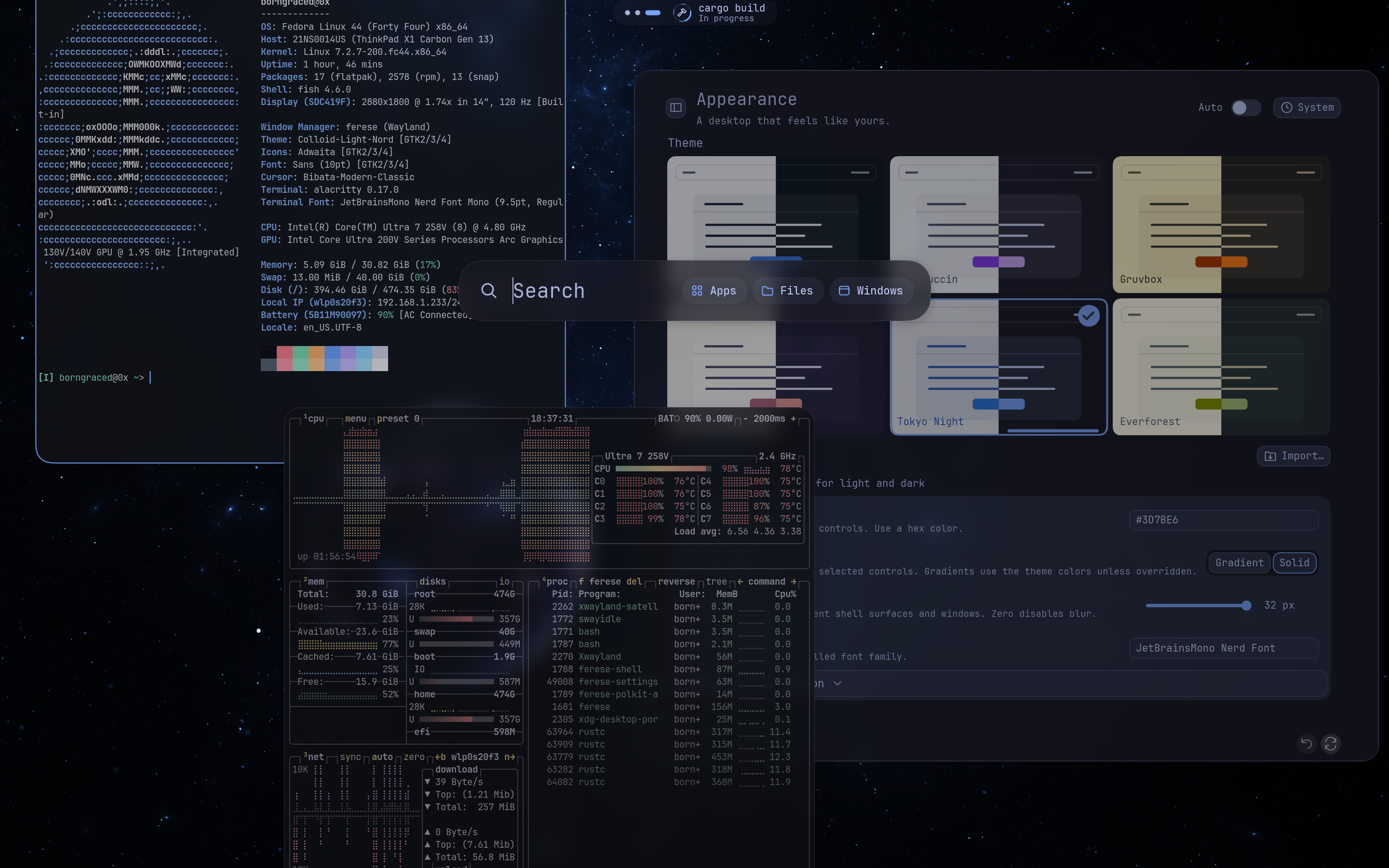
The launcher
Find an app, a file or an open window without leaving the keyboard. The launcher also runs desktop actions, so you can take a screenshot or change the theme from the same search field.
 Ferese
Ferese includes its own shell, launcher and settings, with a shared theme and animations throughout the desktop. Choose a layout for each workspace and configure it through Settings or a KDL file.
Scroll through columns of windows, use tree tiling to divide the screen, or let a window float. Each workspace can have its own layout, with tabs for keeping related windows together.
Move and resize with the mouse or keyboard. When you need to find something, Overview shows your windows and workspaces in one place.
Shortcuts and gestures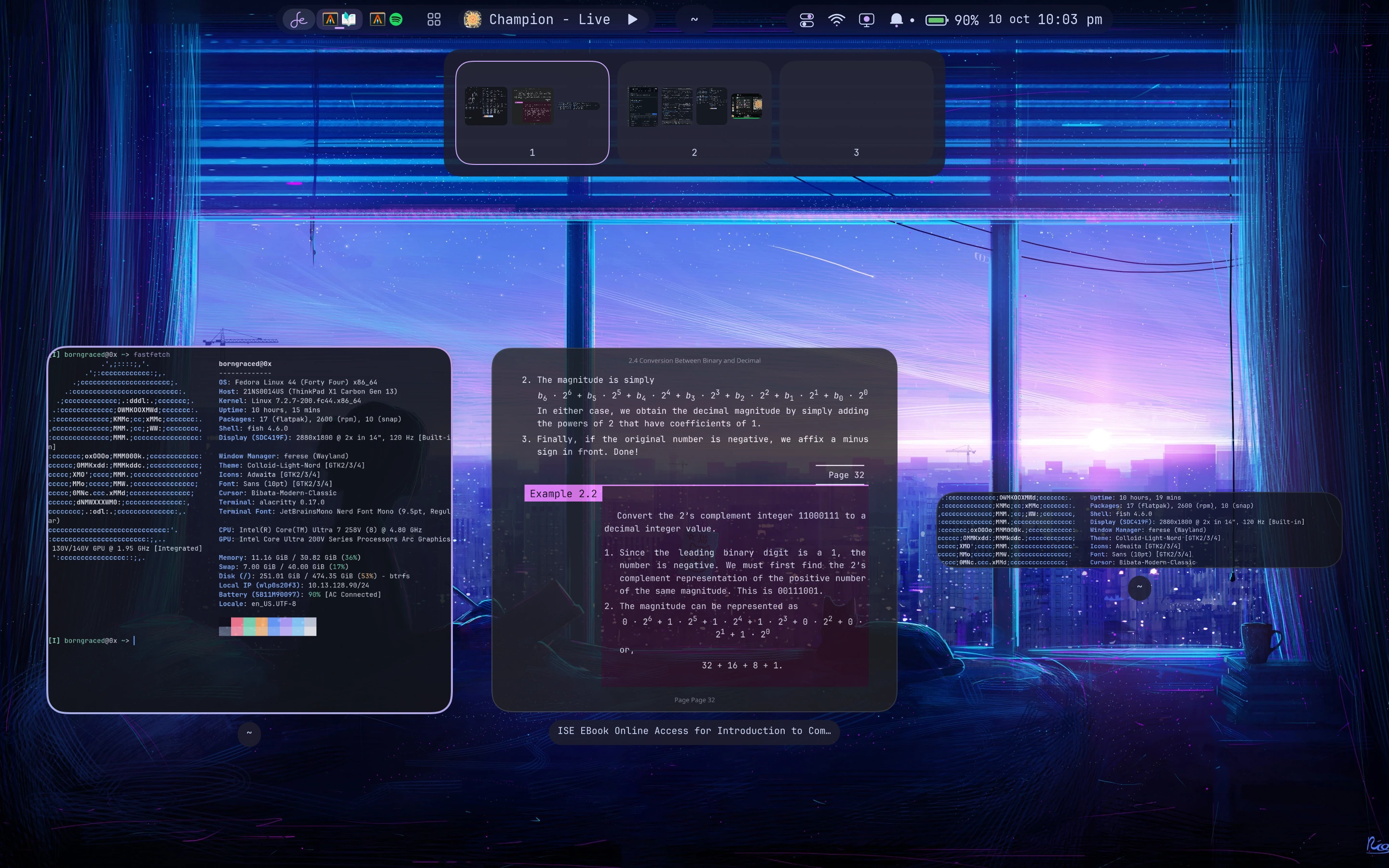
Find an app, a file or an open window without leaving the keyboard. The launcher also runs desktop actions, so you can take a screenshot or change the theme from the same search field.
Live Activities keeps command and build progress visible while you work in another window. The panel can also hold your music controls, a focus timer and screen-sharing status.
Set up Live ActivitiesChoose a light or dark theme, then adjust the colors, fonts, corners and motion. The shell, Settings and lock screen follow the same appearance settings, and changes apply as you make them.
Your panel can be a full-width bar, separate floating groups, or Morph, a compact hub that expands when you open it. Arrange its controls in Settings.
Explore the configuration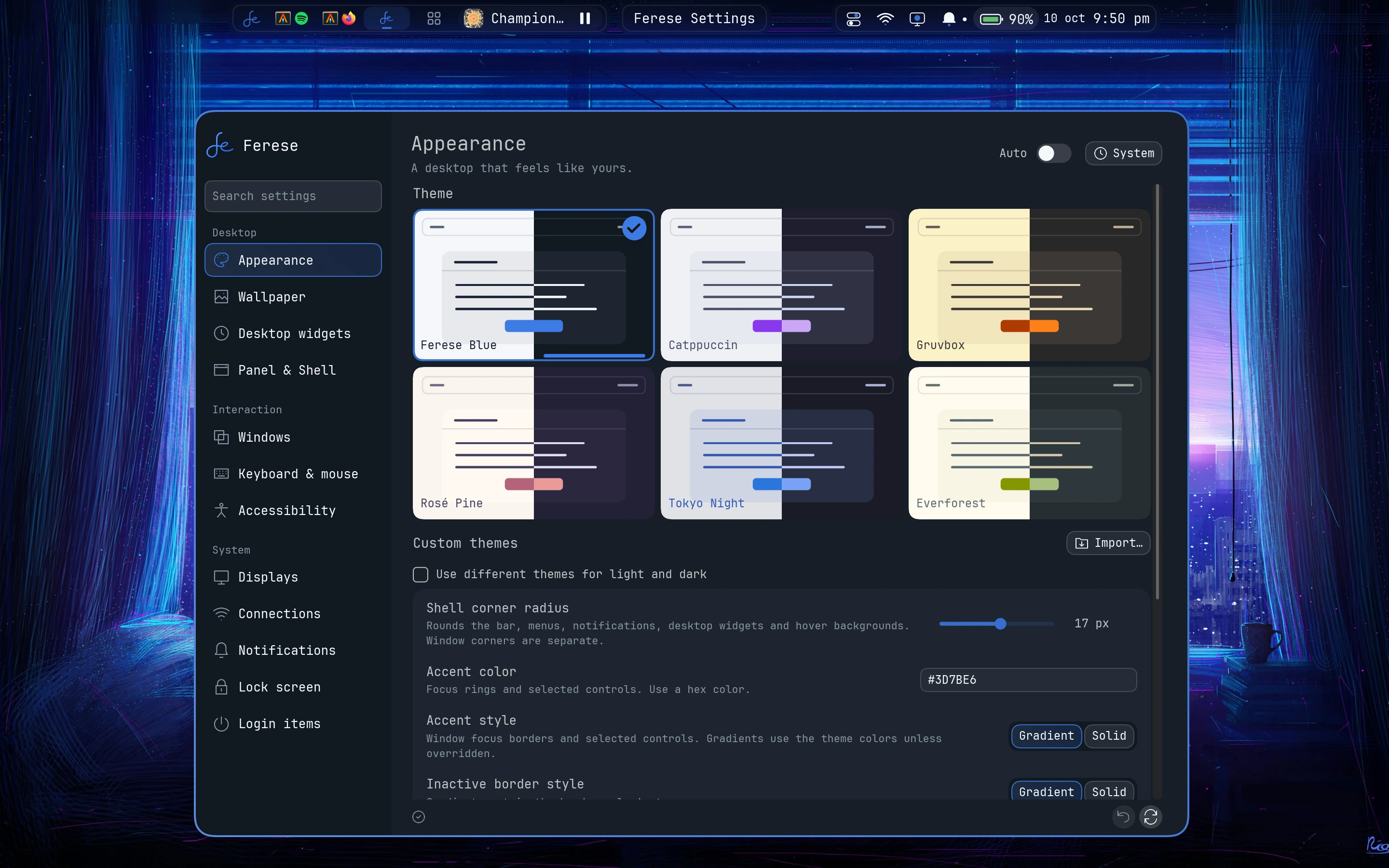
You can try Ferese inside your current Wayland session before logging into it as your desktop.
Upgrading? Log out of Ferese before replacing your installation. See the package installation guide for the steps.